Website and Email Support
How to transfer files to ProActive Design LLC via FTP (File Transfer Protocol)
Using FTP you can easily transfer large files to us without having to burn the files on a CD/DVD and put in the mail. FTP will save you time and the costs associated with CDs and postage. FTP will also allow you to send files that are too large to burn to a CD or DVD (movie files for example).
Step 1) Install the free software:
The first thing you will need is FTP software installed on your omputer. Any FTP software will work and you can even map a drive to your FTP space. We recommend using the FREE FileZilla FTP software. You can download the software here: http://filezilla-project.org/download.php
Step 2) Connect to the server
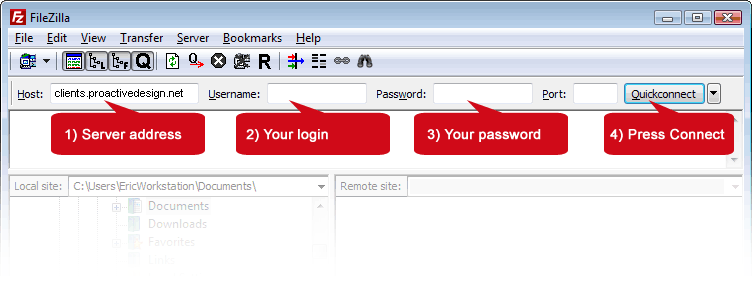
To make a quick connection fill out the three fields below and then press the connect button. You can also go under the File>Site Manager area to permanently add the connection so you don't have to re-enter your login details each time you upload files.
The HOST name to use is: clients.proactivedesign.net
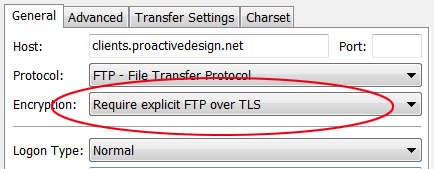
Under general >
encryption you must select "Require explicit over TLS" as shown here:
Note: If you are prompted with a security pop-up after connecting just press the OK button.
Step 3) Upload your files
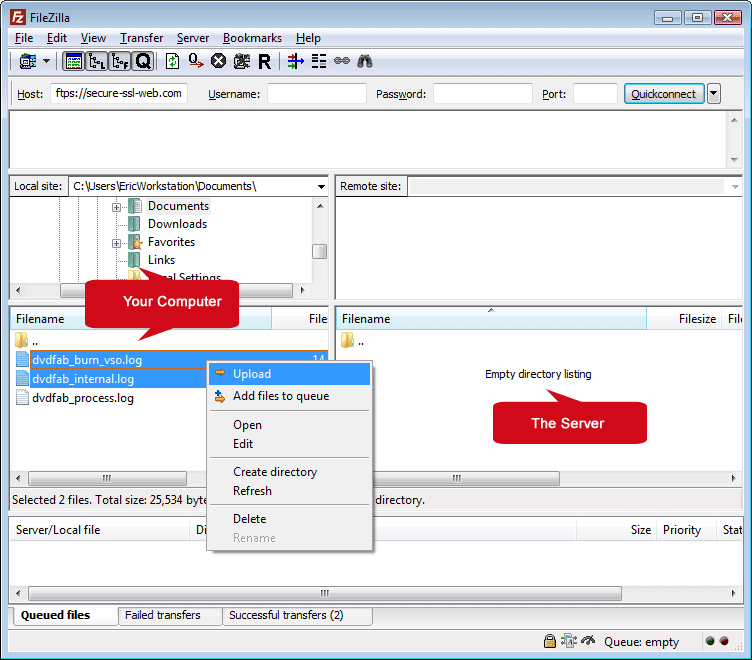
Once connected to the server you will see a familiar Windows Explorer interface. From here browse to the files on your local computer (left pane) that you want to upload to us. You can upload files from your hard drive, USB stick, CD/DVD or mapped network drive.
The right pane will either be empty or have the files you previously uploaded. Simply select the files or folders in the left pane that you want to upload and then drag them over to the right pane. You could also right-click on the files and select "upload".
You're all done.
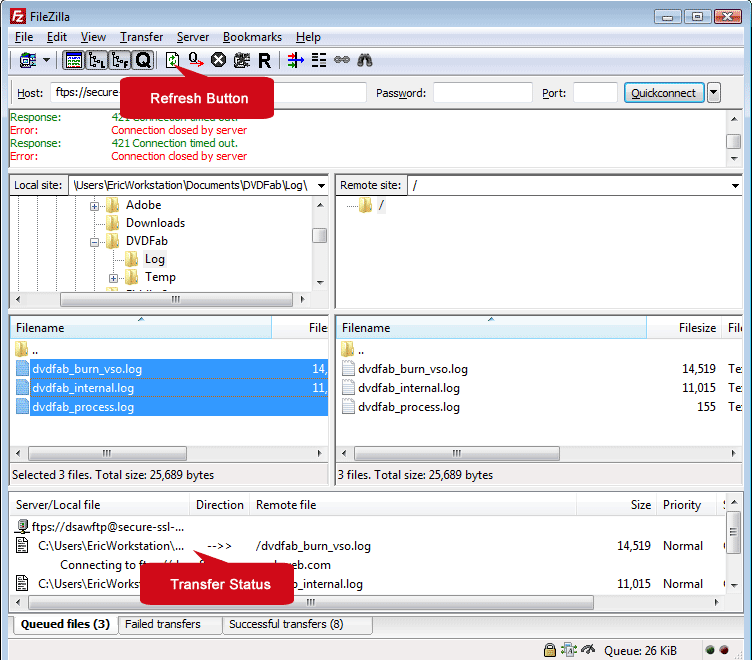
Once the upload is complete you will see the files you transferred copy over to the right pane. If you don't see the files in the right pane after uploading click the refresh button, sometimes the interface doesn't update after an upload and a refresh is needed.

About Us
Waukesha website design: We provide website design, development, website hosting, email service and graphic design solutions to the Greater Milwaukee - Waukesha Wisconsin area and the surrounding communities in southeastern Wisconsin, but we are more than willing to work with those out of this area.
Clients
Use our secure portal to view current and past projects, open invoices and website hosting accounts.
Client Portal Support